Student Accounts
1098-T To Do List Upload
Did you know?
You can now upload Student Account documents to your “To Do List” from your MyCWU account Directly from your computer instead of waiting in line, and here’s how:
Step 1
Navigate to your "Student" tab on MyCWU.
Step 2
Under your "To Do List" section, select one of the items on your list:
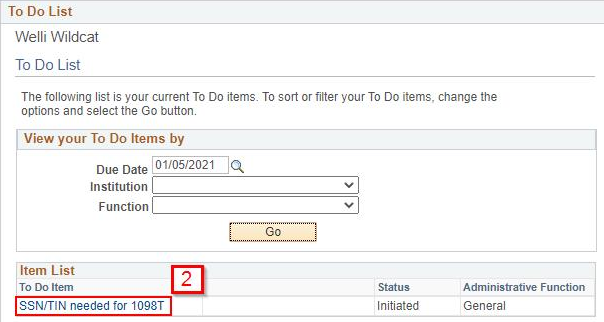
Note: A due date is not required to find your to do list items, however it can help narrow down your search.
Step 3
A window will pop up with an "Add Attachment" button:
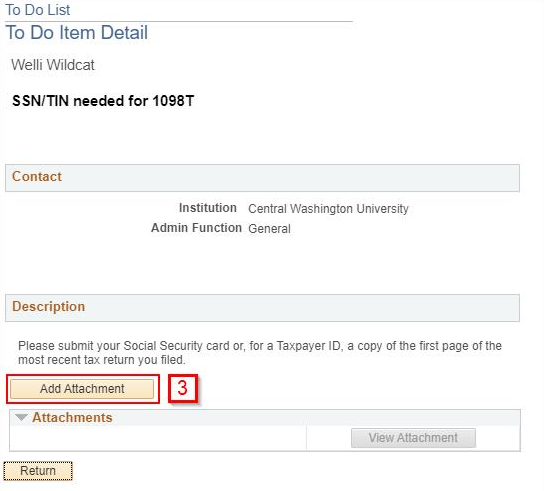
Step 4
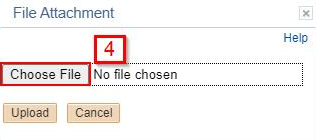
Add your attachment by selecting the correct file from your computer, click upload.
CWU News

CWU to celebrate Indigenous Peoples’ Day on October 12
October 5, 2026 by Marketing and Communications

Music professor named Honorary Member of International Horn Society
October 5, 2026 by Marketing and Communications
Questions? Contact Us.
Student Accounts
Barge 105
Cashiers
Barge 105
(509) 963-2224
Cashiers@cwu.edu
Barge 105
(509) 963-2224
Cashiers@cwu.edu