Accessible Content with Lists
Why Lists Matter
Lists help organize content and make information easier to scan, understand, and navigate. When used correctly, lists provide clear structure for all users and are especially helpful for people who rely on screen readers or other assistive technologies.
Assistive technologies can identify lists, announce how many items they contain, and allow users to move through content more efficiently. Using proper list formatting—not visual styling—improves readability, reduces cognitive load, and ensures content is accessible, usable, and aligned with CWU’s digital accessibility standards.
Creating or Reviewing Lists
Use this checklist when creating or reviewing lists on the CWU website.
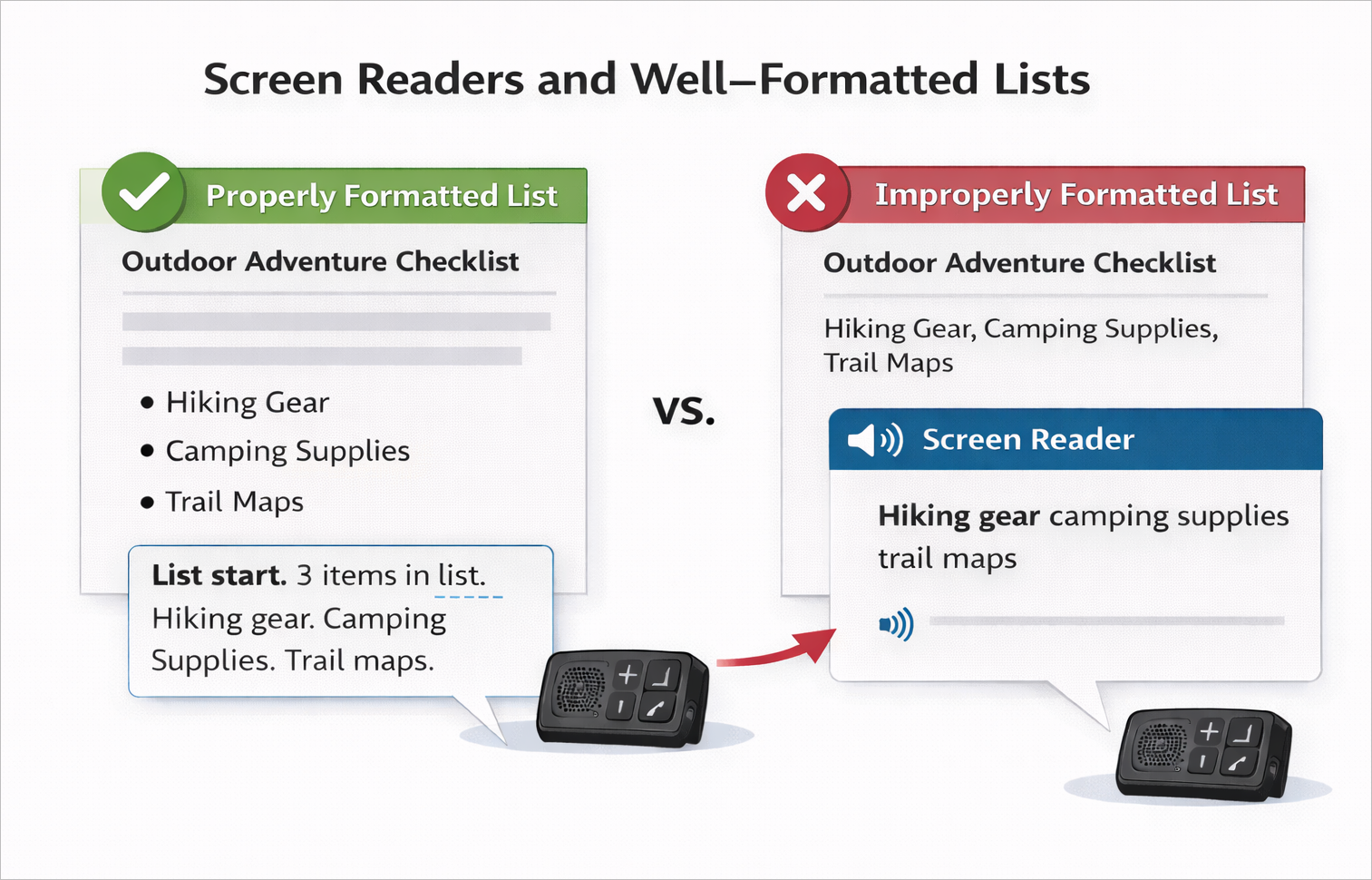
When a screen reader encounters a properly formatted list, it announces that the user is entering a list and identifies how many items it contains. This helps users understand the structure of the content and sets expectations for how much information is included.
If a list is not created using proper list formatting, assistive technologies may read the content as a single string of text, which can be confusing and difficult to interpret. To support accessibility, use one of the two standard list types: unordered (bulleted) lists when order does not matter, and ordered (numbered or lettered) lists when sequence or priority is important.
-
Common Accessible List Errors
This list highlights common mistakes that can make lists confusing or inaccessible, especially for users of assistive technologies. When formatting lists, enrure that you are:
- Creating lists using line breaks, commas, dashes, or asterisks instead of proper bulleted or numbered list tools
- Using paragraphs or spacing to visually mimic a list rather than using true list markup
- Choosing the wrong list type (for example, using bullets when order or sequence matters)
- Failing to introduce a list with context or a clear heading
- Mixing complete sentences and fragments within the same list, creating inconsistency
- Placing long paragraphs inside list items, making them difficult to scan and navigate
- Overusing nested lists or nesting lists too deeply
- Skipping list levels or breaking list structure when nesting items
- Using lists for layout or visual alignment instead of grouping related content
- Inserting headings, images, or other complex elements into list items without proper structure
- Breaking lists across unrelated content or columns
- Copying and pasting content from Word or PDFs without checking that list formatting is preserved
-
Best Practices for Formatting Accessible Lists
Use the following best practices to ensure lists on the CWU website are clear, usable, and accessible to all users.
- Use built-in bulleted or numbered list tools so assistive technologies can properly identify the list and its items.
- Choose the correct list type:
- use an unordered (bulleted) lists when order does not matter
- use an ordered (numbered or lettered) lists when sequence, priority, or steps matter.
- Provide a short introduction or heading before the list to explain what the list represents.
- Keep list items concise and focused on a single idea whenever possible.
- Use consistent grammar and structure across all list items.
- Avoid placing long paragraphs inside list items; break complex information into smaller lists if needed.
- Use nested lists sparingly and only when hierarchy is necessary.
- Ensure nested lists are properly structured and do not skip levels.
- Do not use lists for layout, spacing, or visual design purposes.
- Verify that copied content (for example, from Word or PDFs) retains proper list formatting after being added to the web.
- Test lists with keyboard navigation and screen readers to confirm they are announced and navigated correctly.
CWU News

Arts and Humanities Month continues to build momentum
October 21, 2026 by David Leder

New position at CWU-Des Moines aimed at improving student experiences
October 21, 2026 by David Leder