Creating Accessible Images
Why Alt-Text Matters
Images play an important role in communicating information on the CWU website, but they must be accessible to all users to be effective.
Alternative text (alt text) ensures that people who use screen readers or other assistive technologies can understand the purpose and meaning of an image, while also supporting users who may have images turned off or are experiencing slow connections.
This page provides guidance for creating accessible images and writing effective alt text at CWU. You’ll learn when alt text is required, how to write meaningful descriptions, and how to avoid common mistakes—helping ensure visual content is inclusive, usable, and aligned with CWU’s digital accessibility standards.
What Makes Images Accessible
Accessible images ensure that everyone can understand and use the information presented on the CWU website, including people who use screen readers or other assistive technologies. Images should enhance content without creating barriers or replacing essential information.
Use Meaningful Alternative Text
Images must include appropriate alternative text (alt text) that communicates the purpose of the image. Alt text should convey the same information the image provides in context, not simply describe its visual appearance. Decorative images should use empty alt text so they are ignored by screen readers.

Image context: Used on a CWU admissions page to represent campus life.
❌ Poor alt text: Students walking
Why this is not accessible:
This description is vague and does not communicate the purpose of the image or its relevance to CWU. It adds little value and provides no context for screen reader users.le images helps ensure CWU’s digital content is inclusive, usable, and aligned with university accessibility standards.
✅ Good alt text: Students walking across CWU’s Ellensburg campus between classes
Why this works:
The alt text is concise, contextual, and communicates the same meaning the image provides to sighted users.
Avoid Text in Images
Whenever possible, avoid embedding text within images. Text in images cannot be resized, translated, or reliably read by assistive technologies. If text within an image is necessary, ensure that the text is also available in alt text or in nearby page content.

❌ Inaccessible image: Banner images containing text
Why this is not accessible:
The information is embedded in the image, so it cannot be resized, translated, or reliably read by screen readers.
✅ Accessible alternative:
Use the image for visual interest only, and place the message as real text on the page.
Provide Support for Complex Images
Charts, graphs, diagrams, and infographics often require more than alt text. Provide a brief summary near the image or link to a longer text description so all users can access the information.
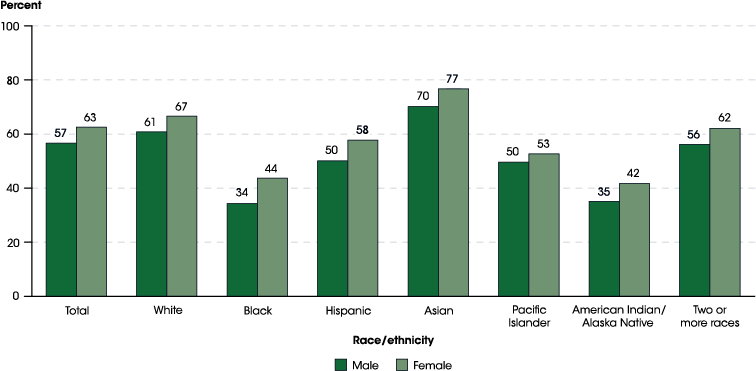
Image type: Bar chart showing graduation rates over multiple years.
Why alt text alone is not enough:
Alt text cannot convey all of the values, comparisons, and trends in a chart.
Accessible approach
- Use short alt text to identify the image
- Provide a brief summary near the chart that explains the key takeaway
✅ Alt-text example:
Bar chart showing CWU graduation rates by academic year.
✅ Text summary example (near the image):
Graduation rates at CWU have increased steadily over the past five years, with the highest rate occurring in the most recent academic year.
Consider Context
Alt text should be written based on how the image is used on the page. The same image may require different alt text depending on the surrounding content and its purpose.
Ensure Visual Clarity and Contrast
Images should be clear and legible, with sufficient color contrast—especially when they convey information such as charts, diagrams, or labels. Do not rely on color alone to communicate meaning.
Use Images Purposefully
Images should support and reinforce content, not serve as the only way information is communicated. Critical instructions or data should always be available in text.
Accessible Functional Images
When an image functions as a link or button, the alt text should describe the action or destination (for example, “Search the CWU website”), not the image’s appearance.
Follow Best Practices (below)
Optimize file sizes, and ensure images are properly embedded so assistive technologies can detect and interpret them correctly.
Creating accessible images helps ensure CWU’s digital content is inclusive, usable, and aligned with university accessibility standards.
-
Common Image Accessibility Errors
The following are common mistakes that can make images inaccessible on the CWU website. Being aware of these issues helps content managers avoid barriers and ensure images support all users.
- Missing alt text on informative images, which prevents screen reader users from understanding the content or purpose of the image.
- Using vague alt text such as “image,” “photo,” or “graphic,” which does not communicate meaningful information.
- Describing what an image looks like instead of why it is included or what information it conveys.
- Including important text or instructions only within an image and not providing the same information as real text on the page.
- Using images as the sole method of communicating critical information, data, or instructions.
- Failing to update alt text when an image is reused in a different context or on a different page.
- Providing alt text for decorative images instead of using empty alt text, causing unnecessary noise for screen reader users.
- Writing alt text that repeats nearby visible text or captions word for word without adding value.
- Using images with poor color contrast or relying on color alone to convey meaning.
- Not providing additional text descriptions or summaries for complex images such as charts, graphs, or infographics.
- Using images as links or buttons without alt text that describes the action or destination.
-
Best Practices for Making Images Accessible
Use these best practices to ensure images on the CWU website are accessible, usable, and inclusive for all users.
- Include meaningful alt text for all informative images to communicate their purpose or content.
- Write alt text based on context, focusing on why the image is included rather than what it looks like.
- Use empty alt text for decorative images so they are ignored by screen readers.
- Avoid embedding important text within images; provide the information as real text on the page.
- Ensure any text that must appear in an image is also available in alt text or nearby page content.
- Provide summaries or longer text descriptions for complex images such as charts, graphs, diagrams, and infographics.
- Do not rely on color alone to convey meaning; use text labels or patterns when needed.
- Ensure images are clear, legible, and not pixelated, especially when they convey information.
- When images function as links or buttons, write alt text that describes the action or destination.
- Avoid repeating nearby text or captions verbatim in alt text unless it adds value.
- Optimize image file sizes and formats to support performance without sacrificing accessibility.
- Review images after publishing to confirm alt text is accurate and still appropriate if content changes.
Following these practices helps ensure CWU’s visual content is accessible and aligned with digital accessibility standards.
CWU News
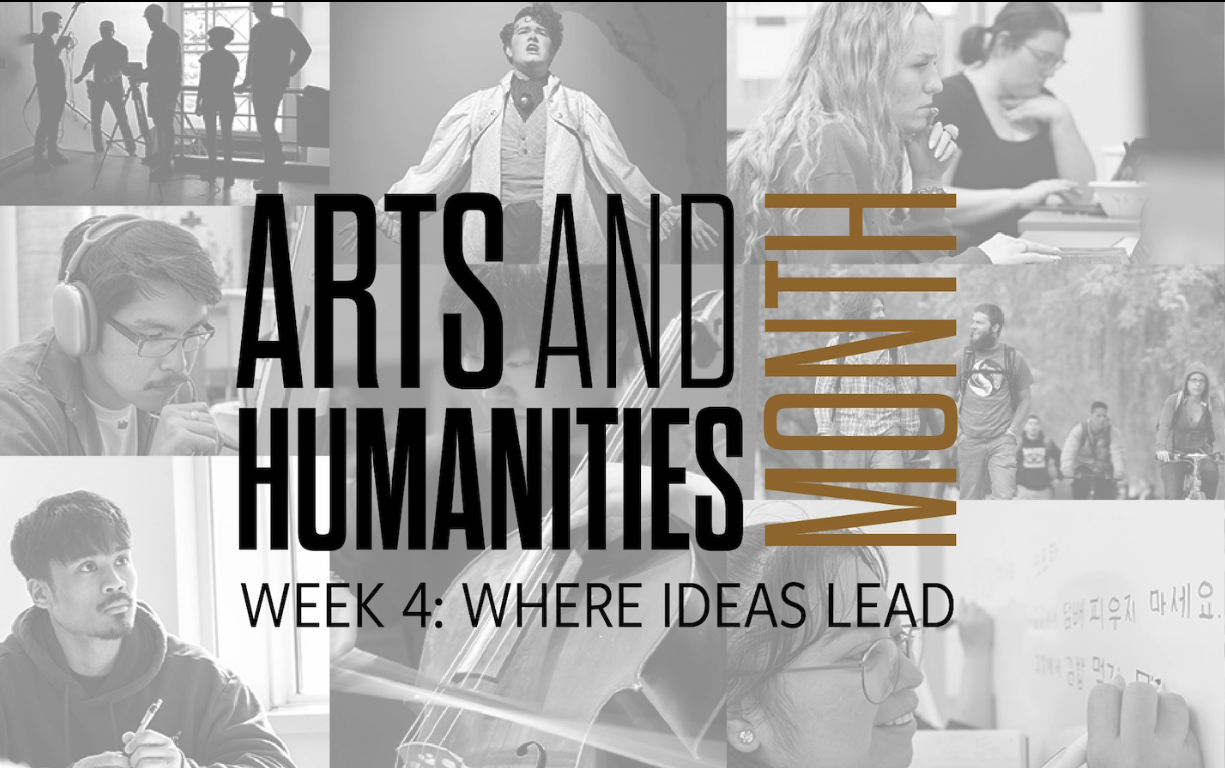
Arts and Humanities Month continues to build momentum
October 21, 2026 by David Leder

New position at CWU-Des Moines aimed at improving student experiences
October 21, 2026 by David Leder