EDGE
EDGE- Your Pathway to Career Success!
Get started, stay involved, and have fun building your future!
EDGE is here to help you succeed—on campus and in your career.
Guide to Navigating Edge
-
Getting Started With Edge
Log In to Suitable
-
Download the Suitable app or visit https://app.suitable.co.
-
Click "Log In" and use your CWU student credentials.
-
Pro tip: Use your short CWU email (e.g. smithj@cwu.edu).
-
You may automatically see EDGE, but you may also need to change your "pathway" in the platform.
- All students have ENGAGE- this is the pathway for general student engagement activities. If you see this, you will need to change your pathway.
-
To change your pathway:
In the App- At the top of your app- click on CWU Engage or Onward, then select EDGE.
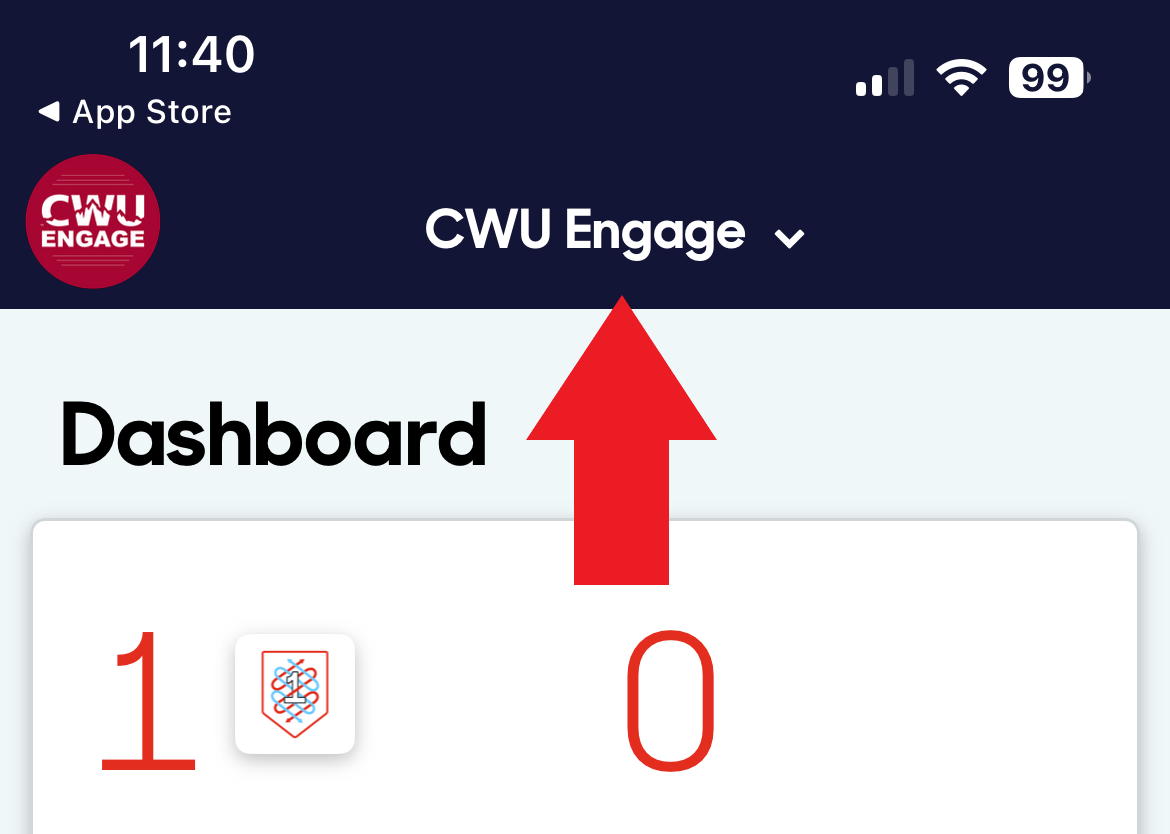
In an Internet Browser- In the upper left hand side if accessing through an Internet browser, click on the round icon and select EDGE.

- Dashboard- Once you see the EDGE Dashboard, you can easily see the tools for navigating EDGE.
- Badges or Achievements
- The Suitable platform (the software that makes up EDGE) treats "Achievements", "Badges", and "Milestones" somewhat interchangeably.
- On the "Featured" tab, you will see the "Start Here" badge. All others will appear on the "Milestones" tab.
- In the App- At the bottom of the app, you will see five icons
- The first is your dashboard
- The second takes you straight to upcoming activities
- The third is the quick link to scan a QR code for an event
- The fourth is your notifications
- The fifth is your full menu
- Badges or Achievements

-
-
Finding Activities and Ways to Engage
After logging into EDGE or opening the Suitable app and navigating to the EDGE pathway, you can find events and activities in two ways.
- By badges- under the "Featured" tab, all College of Business students will see "Start Here," which we recommend all students start with. Under "Milestones" you will see all other badges available to you.
- By Activities- You can click the "Activities" icon in the app or on the left hand menu if accessing through an Internet browser.
- These activities are sorted by date, with the soonest activity first. But this also means that you may not see something that has already happened or an activity that isn't an event.
- You can use the filters to search or look at "All" to see all activities.
-
Frequently Asked Questions
How do I check my points?
- Click the EDGE icon on the menu
- Go to Scorecard to see your "Total Experience" points
Need help?
- Email: cb@cwu.edu
Recommended Badges and Activities
-
Career Ready Badge
The Career Ready badge has many activities that do not require students to attend specific events.
We recommend that you complete the tasks in the following order:
- Career Development
- Career Development Activity List
- Career Development Plan - Reflection and Commitment
- Complete Your Career Development Plan
- You must complete a minimum of 1 of the optional activities
- Identify and Engage in Relevant Professional Career Resources
- Research Careers on O*NET OnLine
- Professional Development Activity List
- Business Professional Dress Code
- Gain Internship and/or Career Experience
- You must complete a minimum of 2 of the optional activities PLUS the Reflection and Commitment activity
- Grow your Digital and Technical Skills
- Complete the required 5 activities.
- Professional Development - Reflection and Commitment
- Serve in Leadership Positions
3. Professional Portfolio
- Professional Portfolio Activity List
- Complete the required 4 activities.
-
Professional Networking Badge
We recommend you complete the tasks in the following order:
- Professional Networking
- Craft your Elevator Pitch
- Connect with Employers- Job Shadows, Visits, Conferences, and Informational Interviews
- Complete a minimum of 3 of the optional activities.
- Establish Your Professional Online Presence
- Complete the 4 required activities.
- Join a CB Club, Student Organization, or Professional Organization
- Complete the 2 required activities.
- Complete a Mock Interview
- Prepare for and Attend Career Fairs -Remember to Dress Professionally!
- Complete 1 required activity and 3 of the optional activities.
- Obtain a Mentor
- Complete 1 or more of the optional activities.
- Complete a Reflection Professional Networking - Reflection and Commitment
- Craft your Elevator Pitch
- Professional Networking
-
Activities for Students who Cannot Attend Events
There are many activities in EDGE that do not require attending an event or logging into a zoom. Many of these even award points for reflecting on your previous professional experiences. Below are a few of these tasks. We also encourage you to look at the Career Ready badge and Networking badge options above.
Business Professional Dress Code
Career or Internship Experience
Explore Your Virtual Career Center!
Identify and Engage in Relevant Professional Career Resources
Research Careers on O*Net Online
Search Opportunities on Handshake
Submit Your Professional Documents
Year-by-Year Approach
-
Year 1 - Explore
- Check out your Resources
2. Prepare for a Professional Setting
- Business Professional Dress Code - Reflection and Commitment
- Connect with Employers- Job Shadows, Visits, Conferences, and Informational Interview
- Complete 3 of the optional activities.
3. Get Involved
-
Year 2 - Develop
- Prepare for a Professional Setting
- Complete 3 of the optional activities.
2. Enhance your Skill set
- Complete 3 of the optional activities.
3. Create Connections
- Complete 1 of the optional activities.
- Complete 1 of the optional activities.
-
Year 3 - Grow
- Career and Professional Development
- Complete 1 of the optional activities.
- Complete 3 of the optional activities.
- Complete 2 of the optional activities.
- Complete 3 of the optional activities.
- Complete 1 of the optional activities.
- Complete 1 of the optional activities.
- Complete 1 of the optional activities.
-
Year 4 - Excel
- Career Readiness
- 2 Cover Letter
- Connect with Employers- Job Shadows, Visits, Conferences, and Informational Interviews
- Complete 3 of the optional activities.
- Complete 2 of the optional activities.
- Complete 1 of the optional activities.
- Complete 3 of the optional activities.
- Complete 1 of the optional activities.
- Complete 1 of the optional activities.
CWU News

Arts and Humanities Month continues to build momentum
October 21, 2026 by David Leder
New position at CWU-Des Moines aimed at improving student experiences
October 21, 2026 by David Leder