Creating Accessible Images and Media
Accessible Images and Media
When used properly, images and video can add value to your website. In general, images should be relevant to and enhance the content of your page. Apply these guidelines to make images on your website accessible and web-friendly.
Image Size
Images should be uploaded to Cascade CMS using the Image Asset, which ensures that files are stored correctly, optimized for use across the website, and accessible to both contributors and approvers. For step-by-step instructions on uploading images with the Image asset, please refer to the Knowledge Base.
Cascade CMS enforces a 2 MB file size limit for images. To meet this requirement and support fast load times for all users—including those on mobile devices or limited bandwidth—images should be optimized before uploading. In most cases, images sized between 800–1200px wide provide a good balance of clarity and performance, depending on their placement on the page.
Because images are often the largest assets on a webpage, oversized or unoptimized files can significantly slow down site performance. Avoid uploading raw files from digital cameras or other devices, as these are usually several megabytes and must be reduced to meet CMS requirements.
As a general guideline, aim to keep images well under 2 MB, and ideally 500 KB or less, whenever possible. This improves page performance and supports a fully accessible experience for all CWU website visitors.
Image Dimensions
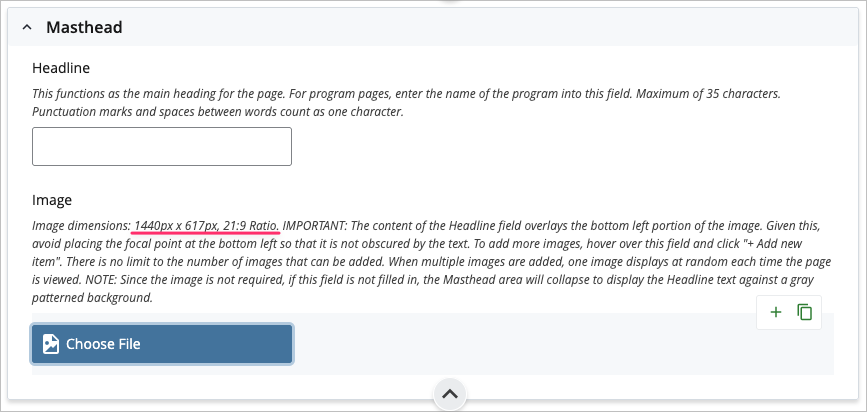
Most image fields within Cascade’s page edit forms include help text with recommended dimensions for width and file size. While these pixel dimensions are not strictly enforced by the system, failing to optimize your images to the recommended sizes can lead to distortion, cropping issues, or unpredictable page layout behavior. Following the suggested dimensions helps ensure that images render cleanly and consistently across templates and devices
Alternative Text (Alt Text)
Alt-text helps ensure that users who rely on screen readers can understand the purpose and content of images on your webpage. Because screen readers cannot interpret images visually, alt text provides a meaningful description that conveys the same information a sighted user would receive.
Not all images require alternative text. Purely decorative images—those that do not add meaningful information to the page—should be marked as decorative. For example, a portrait image does not need alt text if the person’s name already appears in the surrounding text. In these cases, providing alt text would be redundant and may create unnecessary noise for screen reader users.
Images that contribute information or context must include clear and concise alternative text. This includes images that communicate data, illustrate concepts, or serve as calls to action.
Cascade CMS will always prompt you to specify whether an image needs alt text:
- Use the Image Description field to provide descriptive alternative text for meaningful images.
- Check the Decorative option when the image does not convey essential information.
Following these practices ensures that CWU’s digital content is accessible, accurate, and usable for all members of our community.
Alt-Text Examples
Bad alt text:
“Chart”
Why it’s bad: Too vague; it doesn’t tell the user what information the chart conveys.
Corrected alt text:
“Bar chart showing CWU’s enrollment increasing from 2020 to 2024.”
Bad alt text:
“IMG_2045.jpg”
Why it’s bad: File names should never be used as alt text.
Corrected alt text:
“Student ambassador speaking with visitors at a CWU admissions event.”
(If the person’s name appears in nearby text, the image can be marked as decorative.)
Bad alt text:
“Red swirl background design”
Why it’s bad: The image is decorative; describing it adds noise for screen reader users.
Corrected handling:
Mark the image as decorative (no alt text needed).
Bad alt text:
“Beautiful campus quad with nice trees”
Why it’s bad: Too subjective and does not communicate meaningful context.
Corrected alt text:
“Students walking across the CWU campus quad between classes.”
Video
At CWU, accessible multimedia content ensures that everyone can access information regardless of how they receive it. Videos and audio recordings that include spoken dialogue or sound should be accompanied by accurate captions and text transcripts so people who are deaf or hard of hearing (or anyone who prefers reading) can fully understand the content.
What we require
- Captions for video: All published videos with audio must include synchronized captions that match the spoken content.
- Transcripts for audio: All standalone audio (like podcasts or recordings) must have a full text transcript available.
- Transcripts for videos: Video transcripts should include all spoken content and can be presented on a webpage or as a downloadable document.
Best practices
Captions (for video):
- Provide captions that are synchronized with the audio so the text appears at the right time.
- Include speaker labels and descriptions of relevant sounds where appropriate.
- Allow users to turn captions on or off when the media player supports it.
- Include every word of dialogue and spoken information.
- Provide transcripts in an accessible format (such as a plain text webpage or downloadable document).
- When possible, list transcripts near the media so users can easily find them.
How to check your captions and transcripts
After adding captions and transcripts, test them to make sure they work as intended:
- Play the video with captions turned on to confirm they are accurate and sync with the audio.
- Play the video with audio muted to verify that captions and transcripts alone convey all essential information.
- Review transcript text for accuracy and completeness.
CWU News
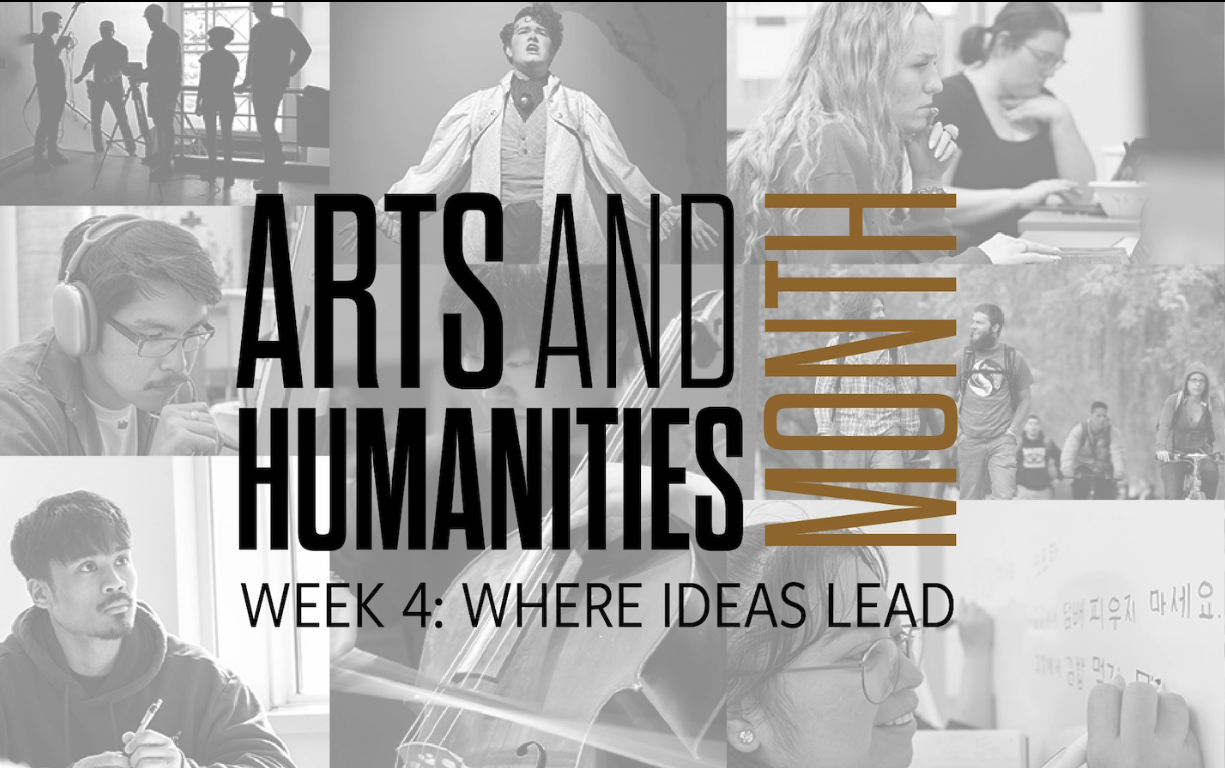
Arts and Humanities Month continues to build momentum
October 21, 2026 by David Leder
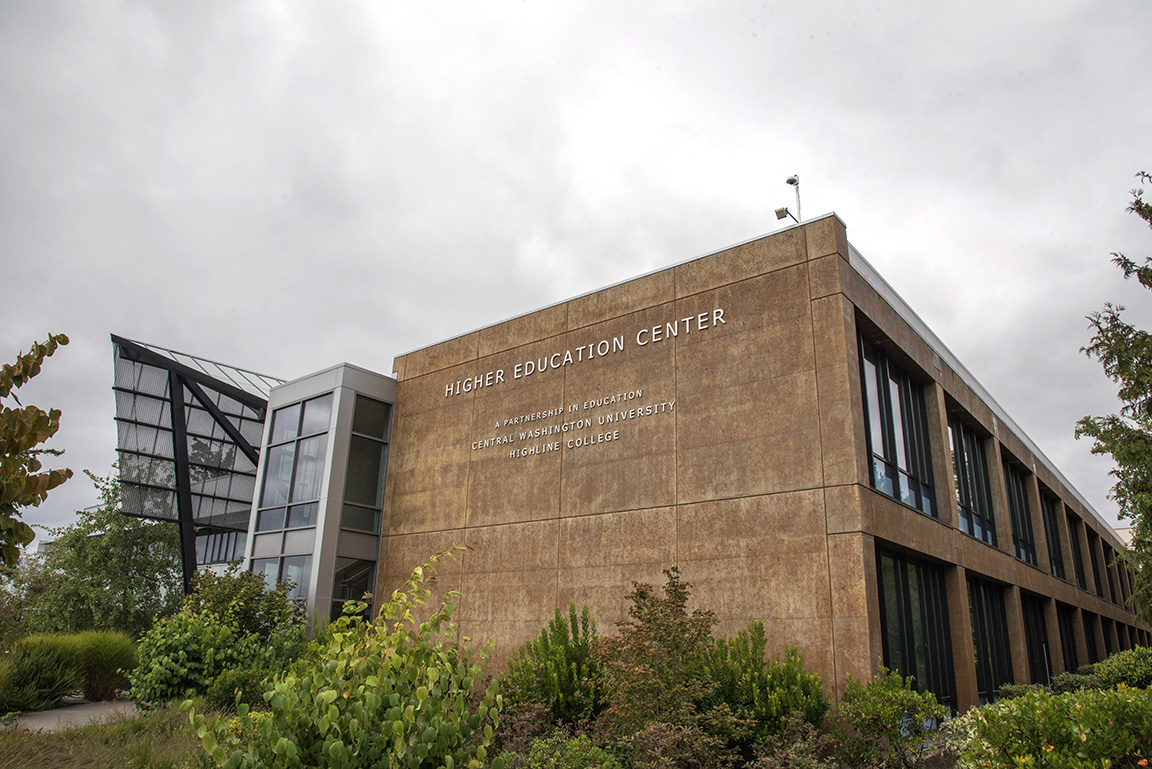
New position at CWU-Des Moines aimed at improving student experiences
October 21, 2026 by David Leder