Resources
How to Guides
Helpful Guides for All Students
-
How do I find my advisor?
You can see the name(s) of your advisor by logging into my.cwu.edu and then clicking on the Student Center Link. Your advisor(s) are listed on the bottom right corner. If you are completing a double major or minor you may have more than one advisor listed. IT Management Online students will also be assigned a Major Support Advisor.
Once you know your advisor, visit the IT Management Faculty Directory to get their contact information.
-
How do I declare my major or minor?
Once you've been admitted to CWU, you can declare your major or minor with IT Management. To do so, go to the program page and fill out an application. Once we receive your application, we will process your request and e-mail your CWU student e-mail account. Make sure you have accepted your admission offer in my.cwu.edu so that we can properly process your major declaration.
-
How do I change or drop my major/minor?
If you want to change your major or minor, first talk with your advisor. Your advisor can help you strategize your plan in accordance with your goals. You can change or drop your major/minor by going to the Apply page and filling out an application.
-
How do I access my CWU email account?
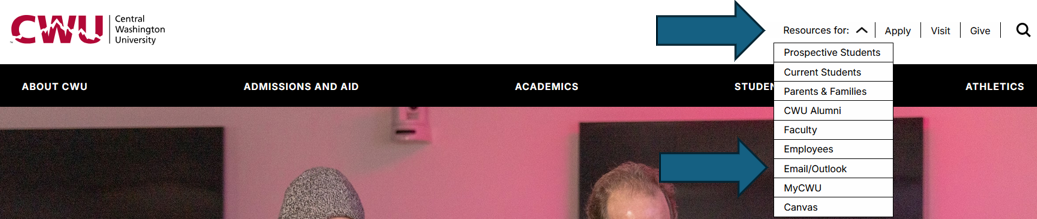
You can access your CWU student e-mail account by going to any page on the CWU website and hovering over the "Resources for" button, then clicking on "Email/Outlook".
Your e-mail address is username@cwu.edu. CWU uses a single-sign-on-service, which means you have 1 password with us. Your password for MyCWU, Canvas, and your e-mail is the same.
For help, try going to the helpdesk or contacting the help desk for assistance.
Samuelson Hall, 1st floor
400 E. University Way
Ellensburg WA, 98926
Phone: (509) 963-2001
Email: servicedesk@cwu.edu
Mon - Thurs: 7am - 8pm
Fri: 8am - 5pm -
How do I accept my admissions offer?
Students who are offered admission to the university must confirm their intention to enroll by logging into MyCWU and using the Accept/Decline button in their Admissions Toolbox. This will begin the orientation, registration, and advising process.
-
How do I check my academic requirements?
Your Academic Requirements Report (AR Report) is a handy tool because it shows you what classes you need to take, which classes you've already taken, how your completed classes are counting towards your degree, and what classes you have in progress. Your advisor builds your academic advising sheet based on your AR report. Your AR report is an important tool for you to know how to access, so please let us know if you have any questions.
Watch this video to learn how to access and use your AR Report. -
How do I view my unofficial transcript?
Watch this video to learn how to view your unofficial transcript.
-
What is a class waitlist?
A student gets on the class waitlist at the time they attempt to enroll in a course that is full or has reserves by checking the “OK to Wait List” check box that will be displayed when enrolling in a class. Students should be aware that the system will automatically enroll them in a course for which they have wait listed once a seat becomes available and if they are eligible to enroll. The waitlist will stop enrolling students on the third day of the quarter.
For more information, visit the Office of the Registrar.
-
How do I add/drop classes?
Watch this video to learn how to add/drop classes in MyCWU.
-
How do I use MyScheduler for class registration?
Watch this video to learn how to use MyScheduler.
CWU News

Arts and Humanities Month continues to build momentum
October 21, 2026 by David Leder

New position at CWU-Des Moines aimed at improving student experiences
October 21, 2026 by David Leder
Questions? Contact Us.
IT Management Department
Samuelson 206