Selecting Your Site
In Cascade CMS, all websites are organized into folders. To find the folder that contains your website files:
Click on the words "Go to a Site" in the Site Selector at the top-left corner of the screen in Cascade. The Select a Site window will appear. Select CWU to display the Asset Panel (sidebar). The Asset Panel is how you navigate the folders to find the one that contains the files for your website.
Navigate throught the folders to find your website. Academic websites are typically found in the Academics folder, while most non-academic websites will be located in the About > Offices folder. There are exceptions to this organization, so if you are having trouble finding the folder with your website files contact us for help.
Once you have selected your website’s folder you can use either the sidebar or the main window to navigate through your site. When you click on a page, you will be able to preview it in the main window.
CWU News

Arts and Humanities Month continues to build momentum
October 21, 2026 by David Leder
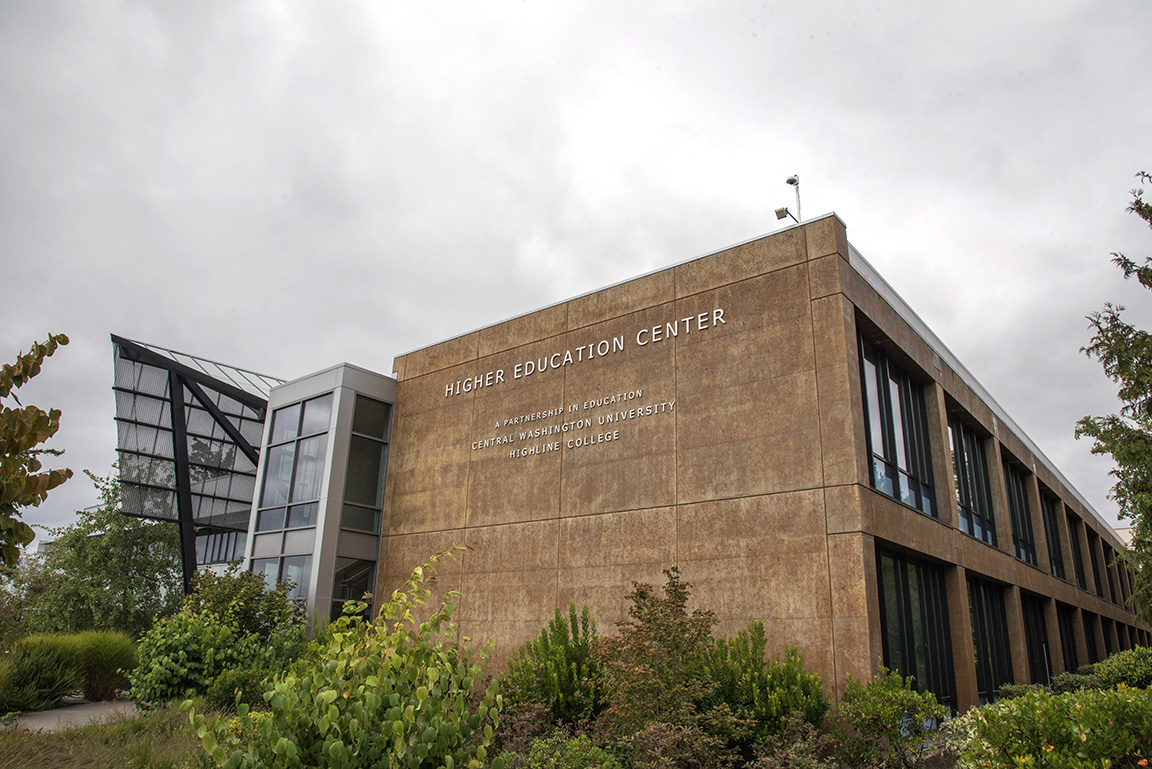
New position at CWU-Des Moines aimed at improving student experiences
October 21, 2026 by David Leder